Author:克亮 Original link>>>
Recently, the forum has launched the first issue of 2025 "Linyaps Application Migration and Development Recruitment Competition". The prizes are generous. I hope everyone will participate and don't miss the great opportunity to take part in the announced rewards program. Because I have been busy with offline work for a while, I can't participate in the event very well. Now I will share with you a little bit of knowledge I know. If there are any mistakes, please let me know.
Activity page address: https://bbs.deepin.org/post/290641
Currently Linyaps can be packaged with source code, Native deb package transfer , appimage package transfer , flatpak package transfer , wine package transfer. In addition to source code packaging requiring a certain programming foundation,
Various other package transfer formats are relatively easy for novices to use and are not too difficult.
Here we focus on how to use Convert wine package to Linyaps format package . I will have the opportunity to discuss with you later the techniques for converting various other packages to Linyaps packages, which are basically not difficult. Because the official launch UnionTech Windows Application Compatibility Engine is a very NICE tool that can convert some Windows versions of EXE into ones that can be installed and executed on the deepin system, making up for the fact that many software manufacturers have not yet provided native package alternatives for the deepin operating system.
First deploy the Linyaps environment. For details, click this link https://linyaps.org.cn/guide/start/install.html
Please pay attention to the corresponding system.
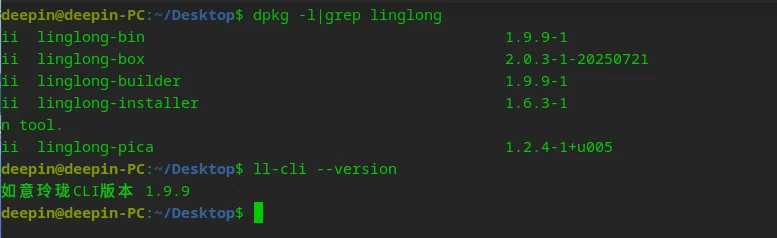
The latest version of Linyaps is 1.9.9 version
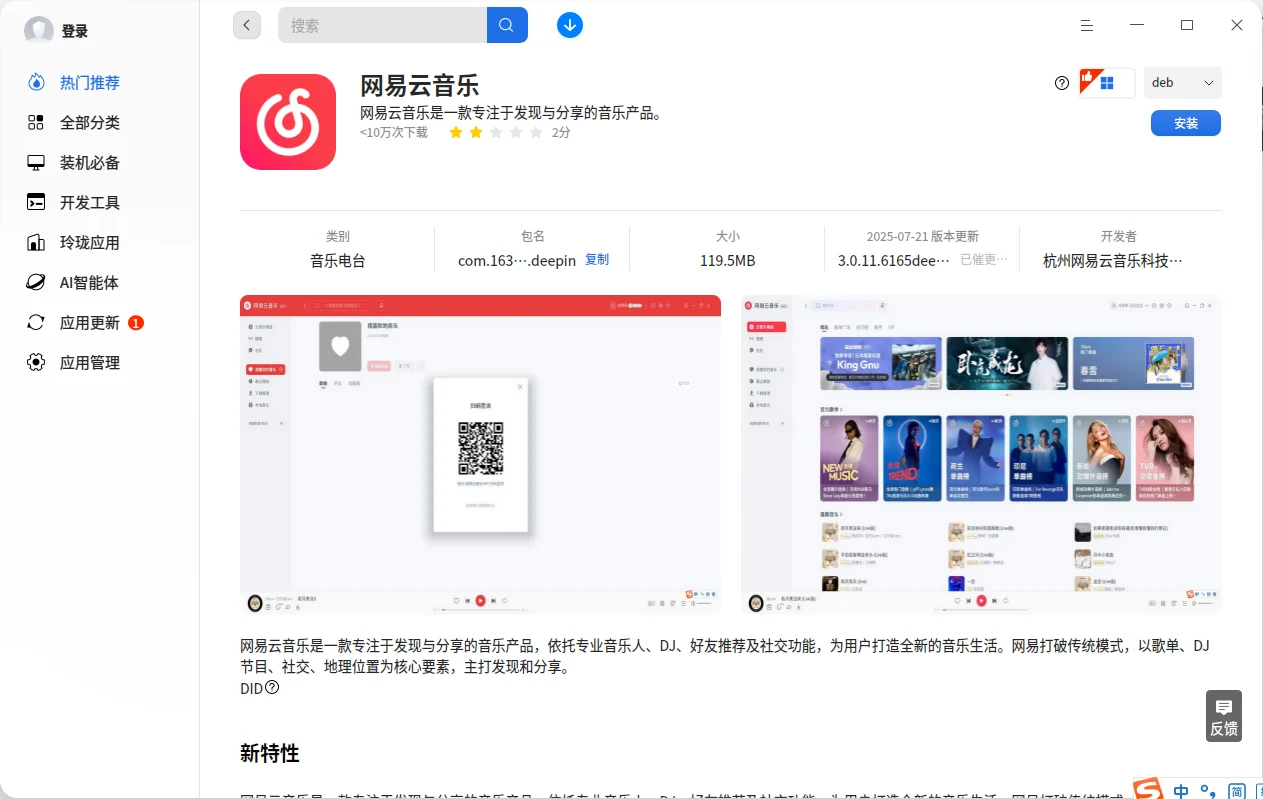
After installation, we take the existing wine package in the store as an example, NetEase Cloud Music package name: com.163.music.deepin
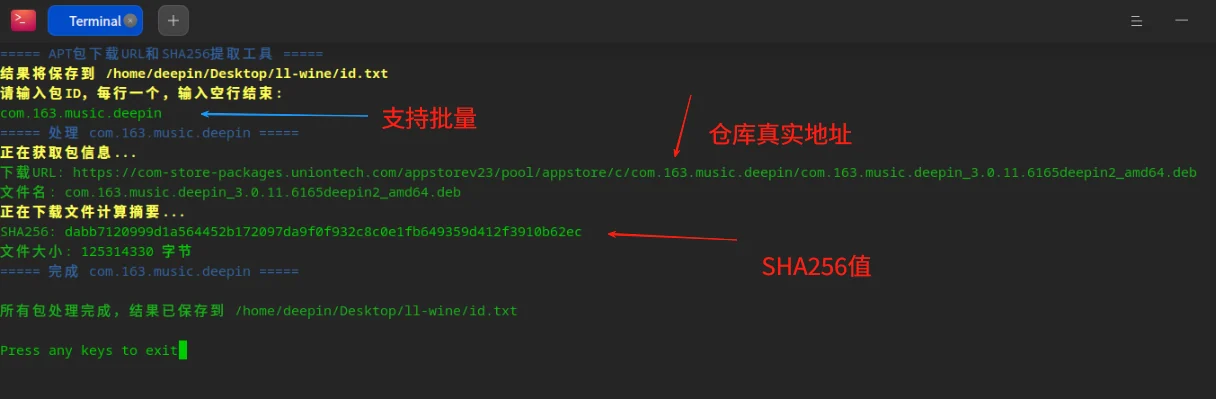
I made a script that can automatically extract the real download address and calculate the sha256 value by copying the store ID. This is what needs to be entered in the sources part of linglong.yaml. After decompressing the following script, you can give execution permission through chmod + x apt_url_digest_interactive.sh.
apt_url_digest_interactive.zip
Double-click to open the input ID and you can automatically calculate the download address and SHA256 value, as shown below
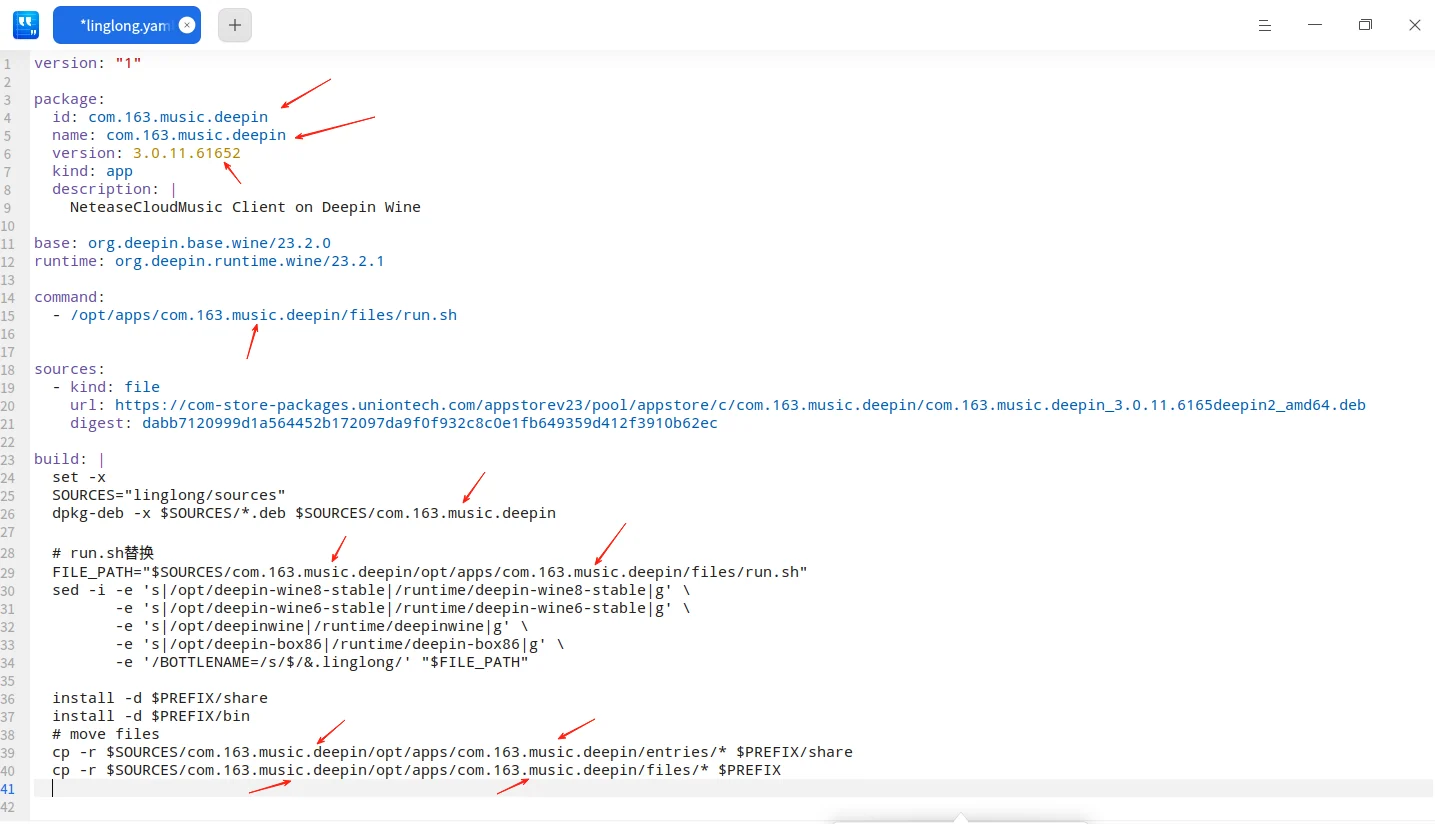
With this address, the next step is very simple. Use a public template linglong.yaml in wine-Linyaps format to replace the ID part of the content.
linglong.zip Convert wine to Linyaps public template. The content of the red arrow part is unified. You can use the search and replace method to complete it at once. Pay attention to the version number
In the sources section, fill in the real address obtained above, and in the digest section, fill in the SHA256 value.
With linglong.yaml, it is too simple. It only requires two commands and the task is completed in 2 minutes.
In the linglong.yaml directory, right-click to open the terminal and enter ll-builder build as shown below
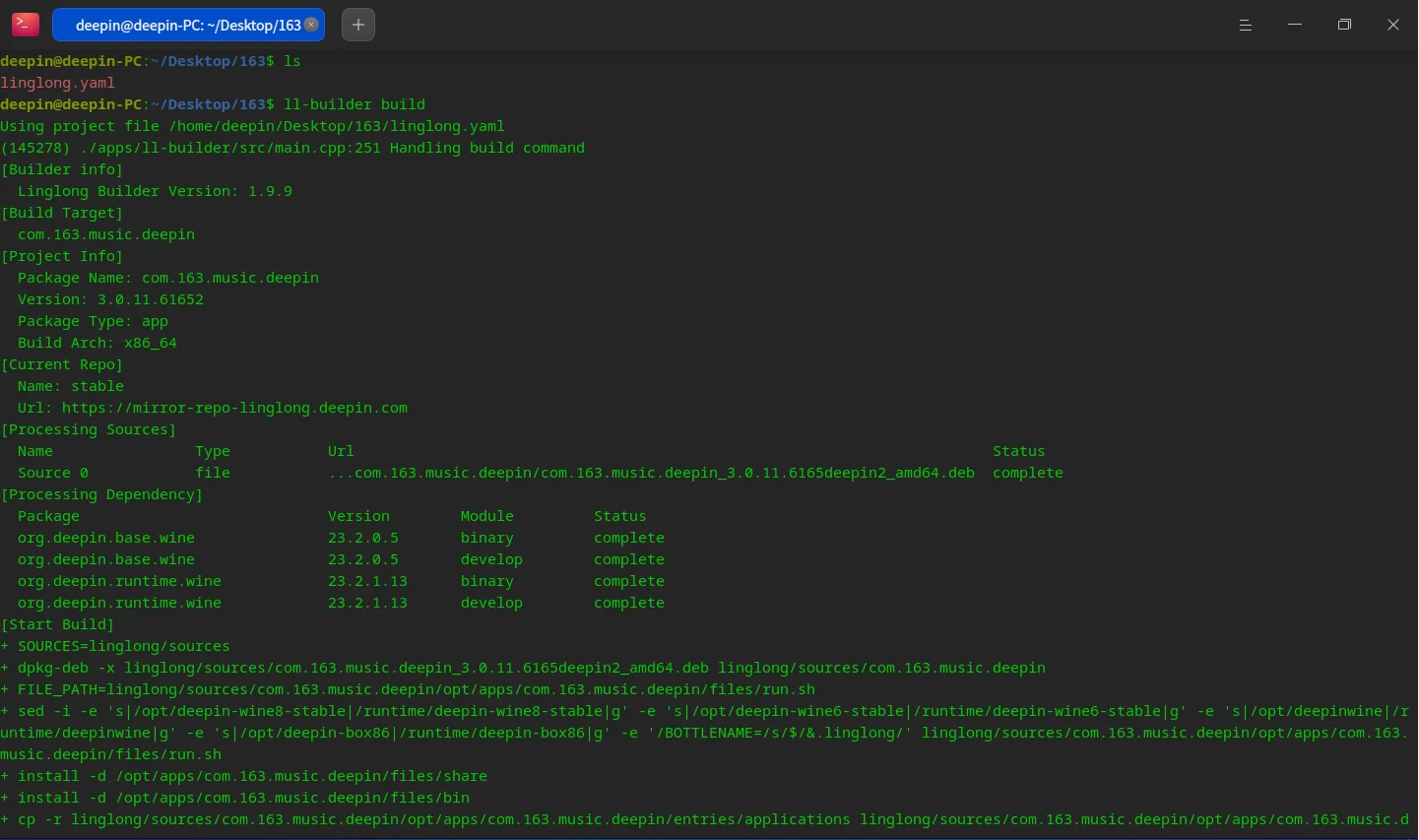
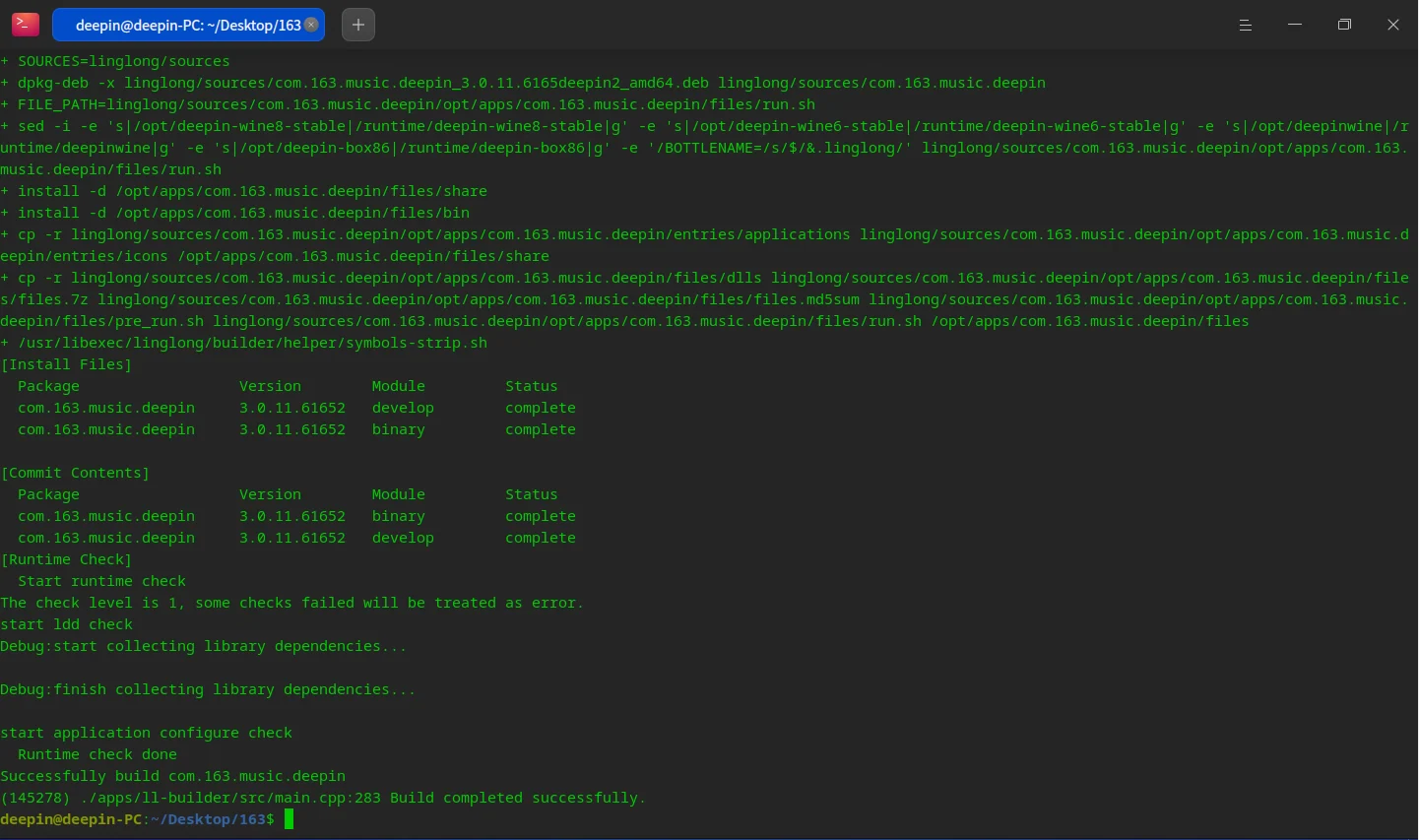
See Build completed successfully! Then the construction has been completed. Next, execute the export and build it into a Linyaps format package.
Execute ll-builder export –layer
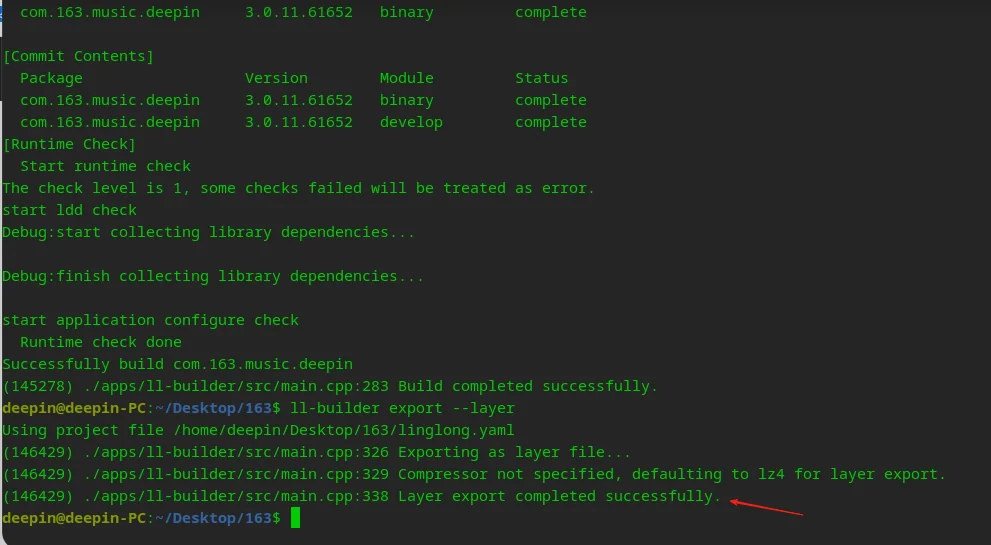
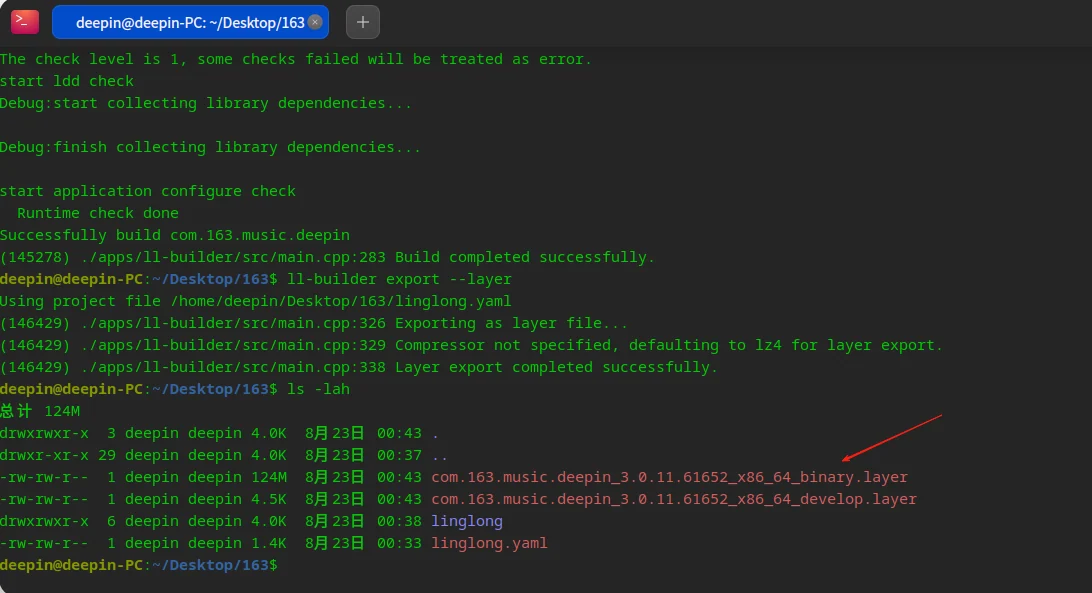
As shown by the red arrow in the picture above, it is the fruit of victory.
Execute ll-cli install com.163.music.deepin_3.0.11.61652_x86_64_binary.layer to install the Linyaps package.
Open the launcher and there is the NetEase Cloud Music you just followed.
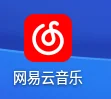
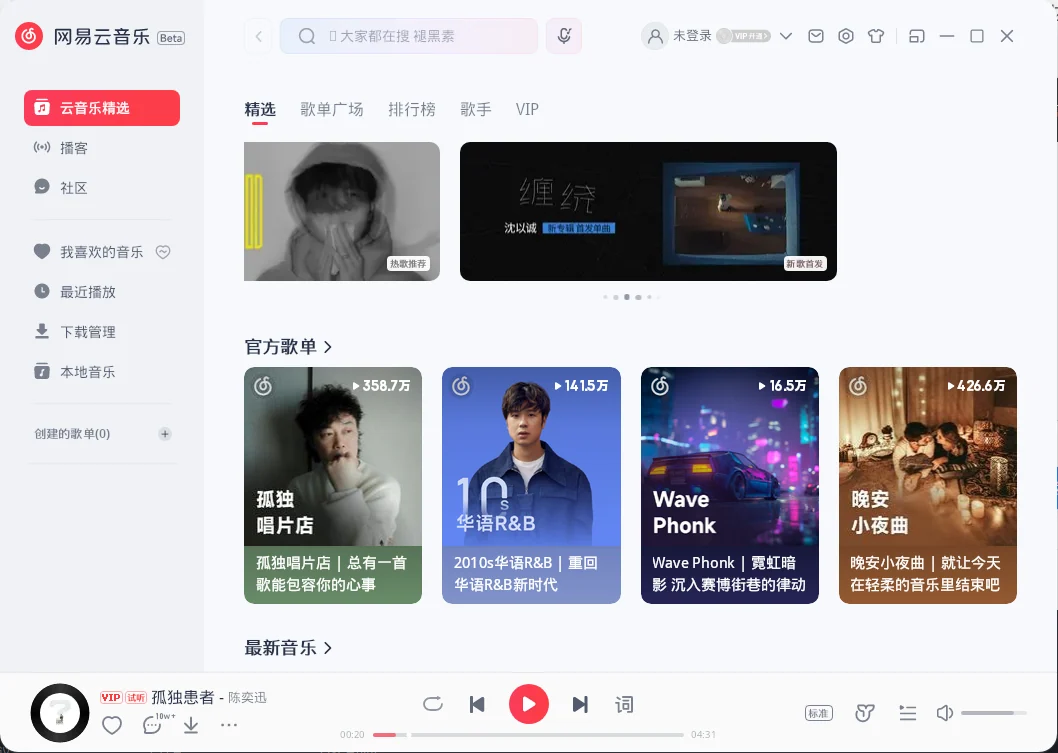
Is it very simple? Come and try it.
Next, how to use the local UnionTech compatibility engine to package the downloaded EXE file into a deb and then convert it into a Linyaps package is actually very simple.
We follow the rhythm of packaging tasks and focus on the official release🍥 Specify application manifest Choose one randomly depending on which one you like. Let’s choose commercial application as an example. Nancai Financial Terminal
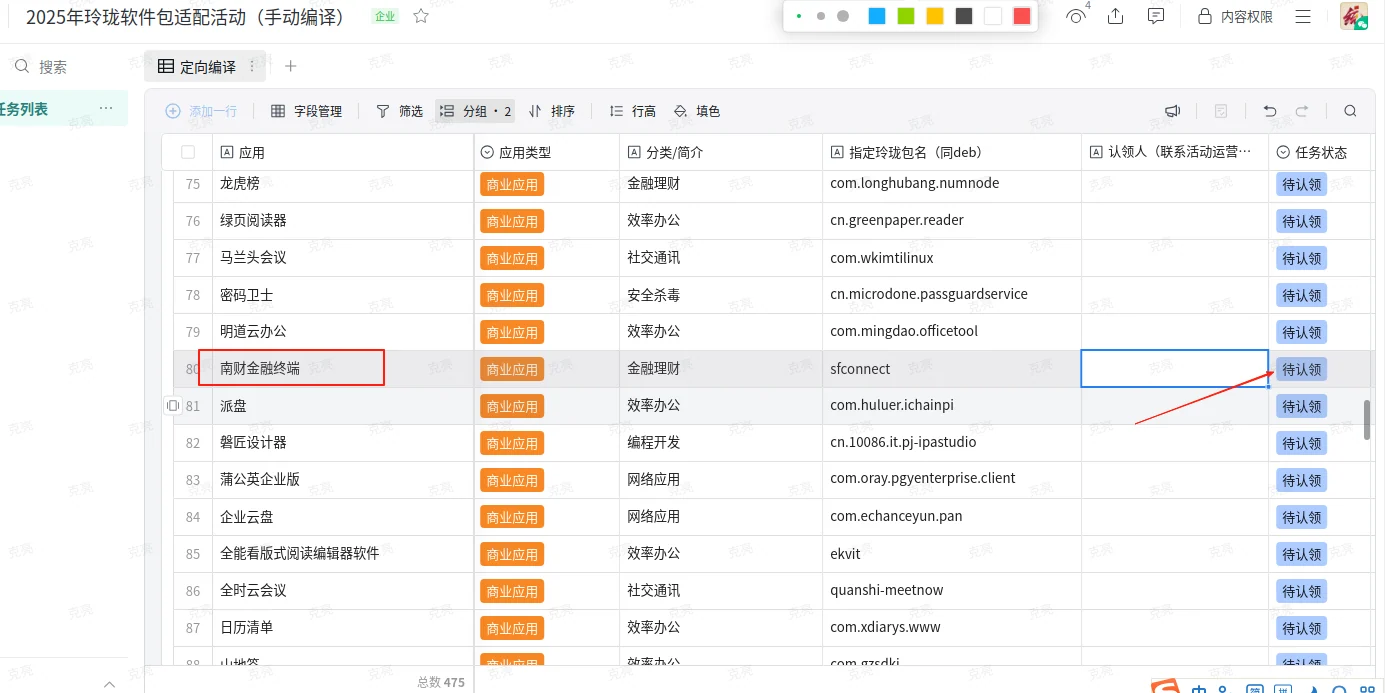
First find the official website of Nancai Financial Terminal https://sfconnect.sfccn.com/ Find the Windows version and download it locally.
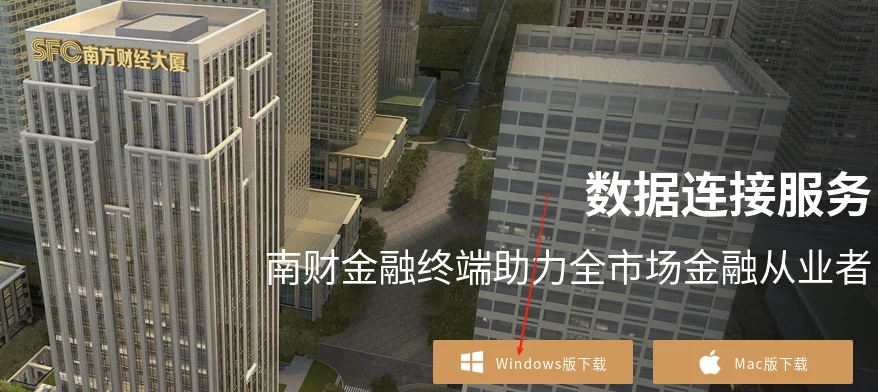
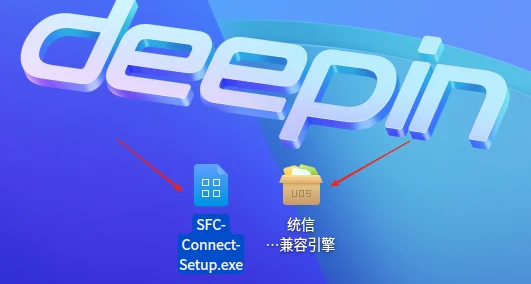
Then use the compatible engine to open the installation. There are two methods. The first method is to double-click the EXE file directly and install it just like the Windows system. The next step... is completed.
The second method is to open the UnionTech Windows application compatibility engine and add an application in the upper right corner.
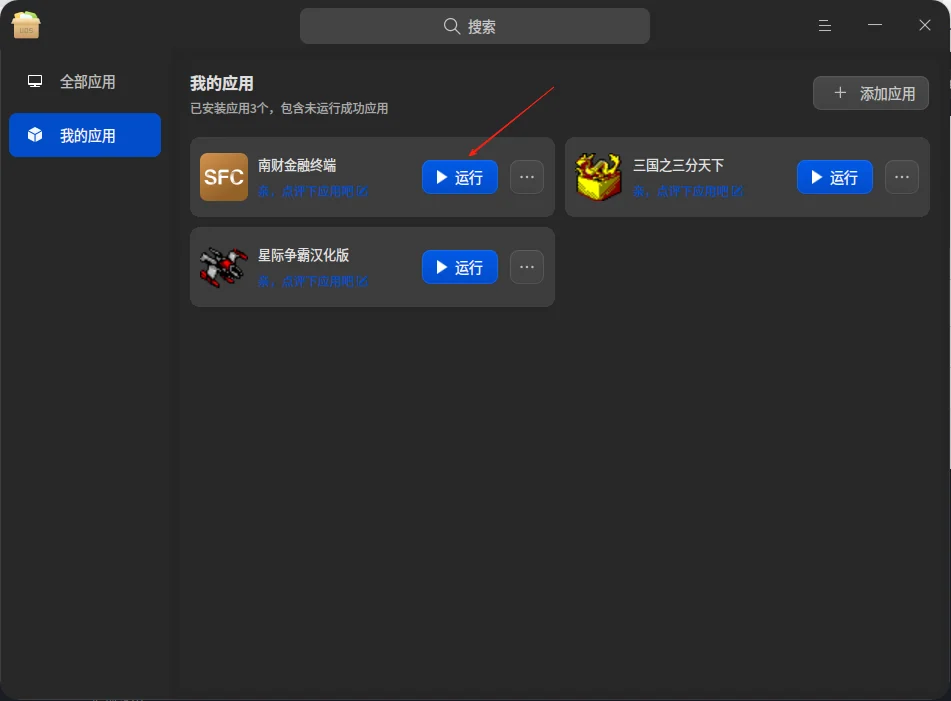
After the installation is complete, the picture is as follows: Click Run, the software can open normally, but the next step is very important.
Because the current wine version of Linyaps only supports deepin-wine8-stable , the default installation may use the latest version of the compatible engine deepin-wine10-stable,
We need to modify it to be compatible with Linyaps version as shown below
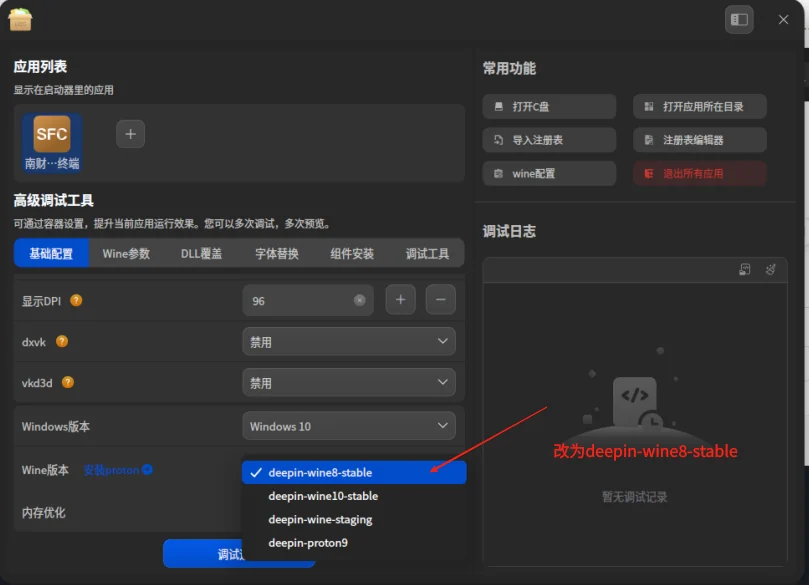
Select deepin-wine8-stable for the wine version, click Debug and Run, and the program runs normally.
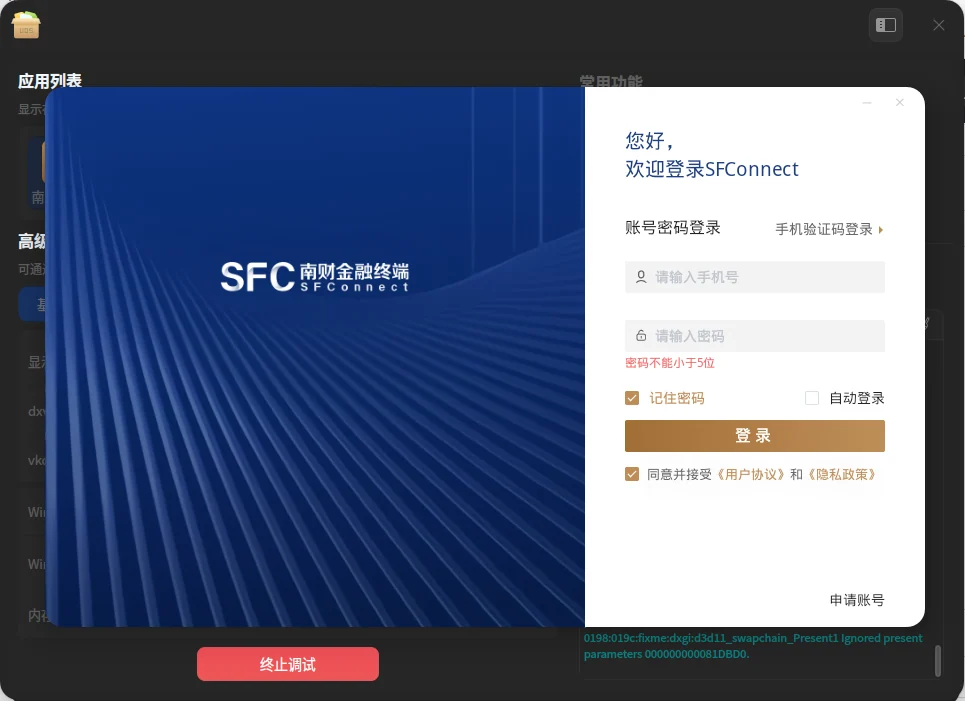
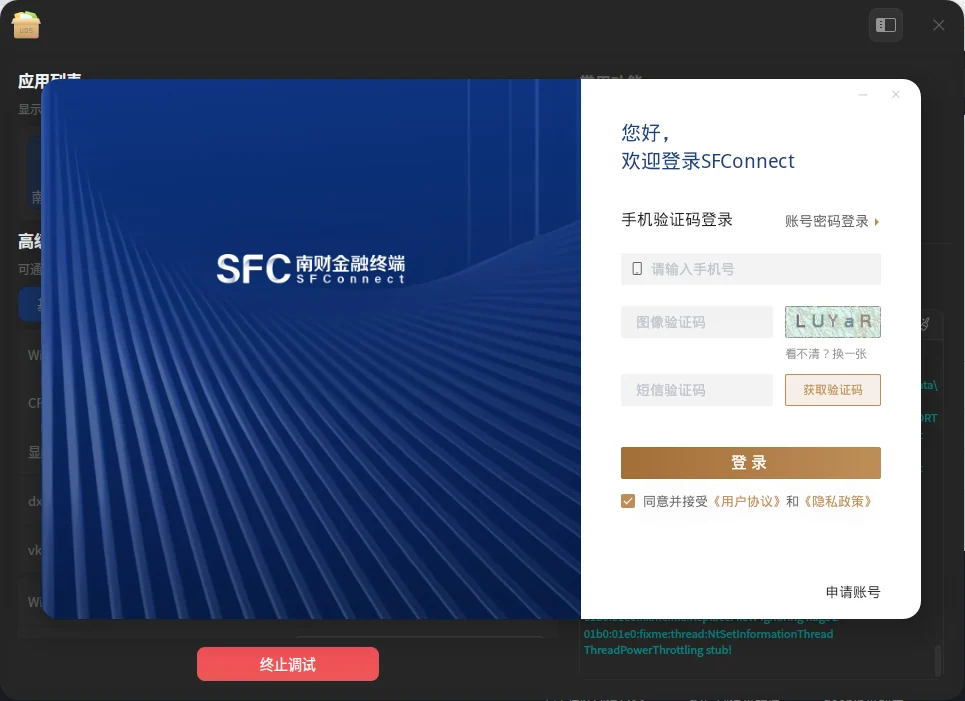
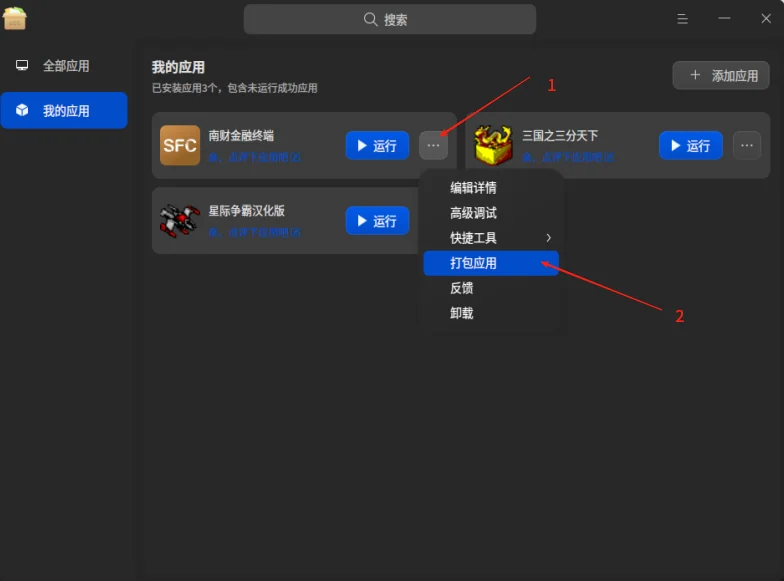
The next step is to use the UnionTech Windows Application Compatibility Engine to package the just installed software into a deb installation package. The operation is as follows
The following is demonstration data, please fill it in according to the specific conditions of the respective software.
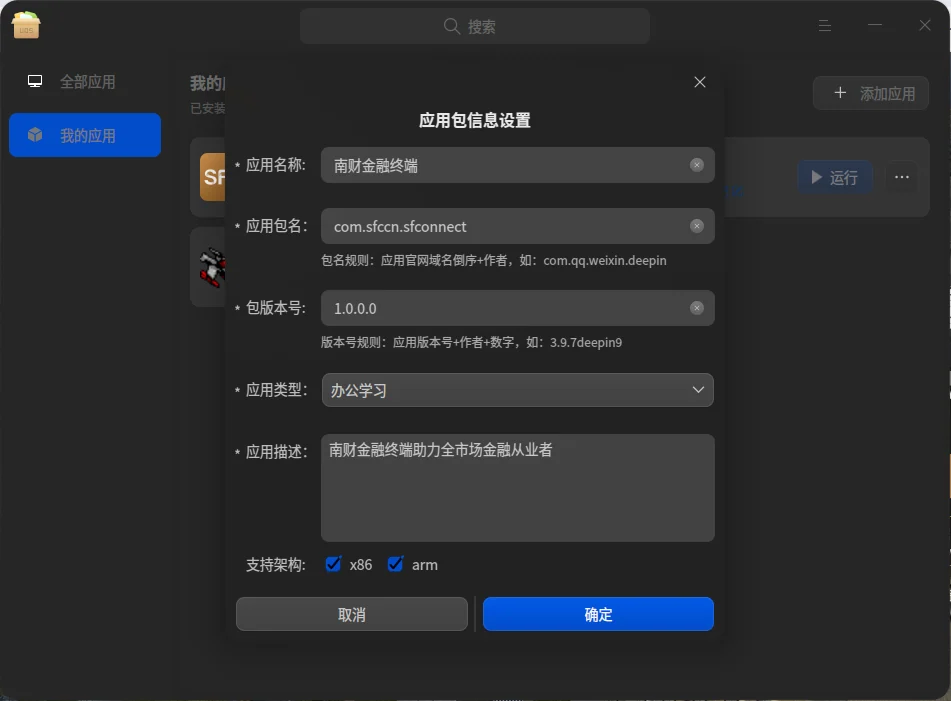
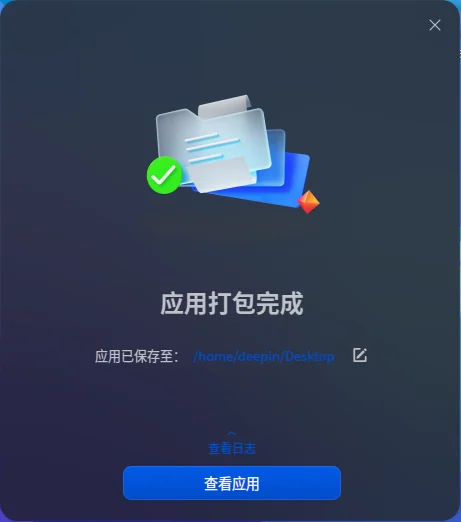
After successful packaging, it will be displayed as shown below. At the same time, a deb format installation package of Nancai Financial Terminal will be obtained on the desktop.
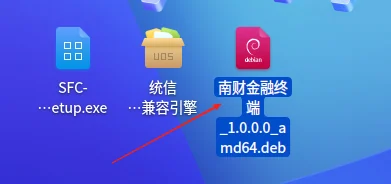
With this deb installation package, the next step is very simple. Create a new folder on the desktop and name it Nancai Finance (the name can be arbitrary)
According to the wine public linglong.yaml of the previous issue, we only need to modify 2 places, as shown below
linglong.zip Here is the modified linglong.yaml file. The id name can be changed at once using text batch replacement. Pay attention to the script name. 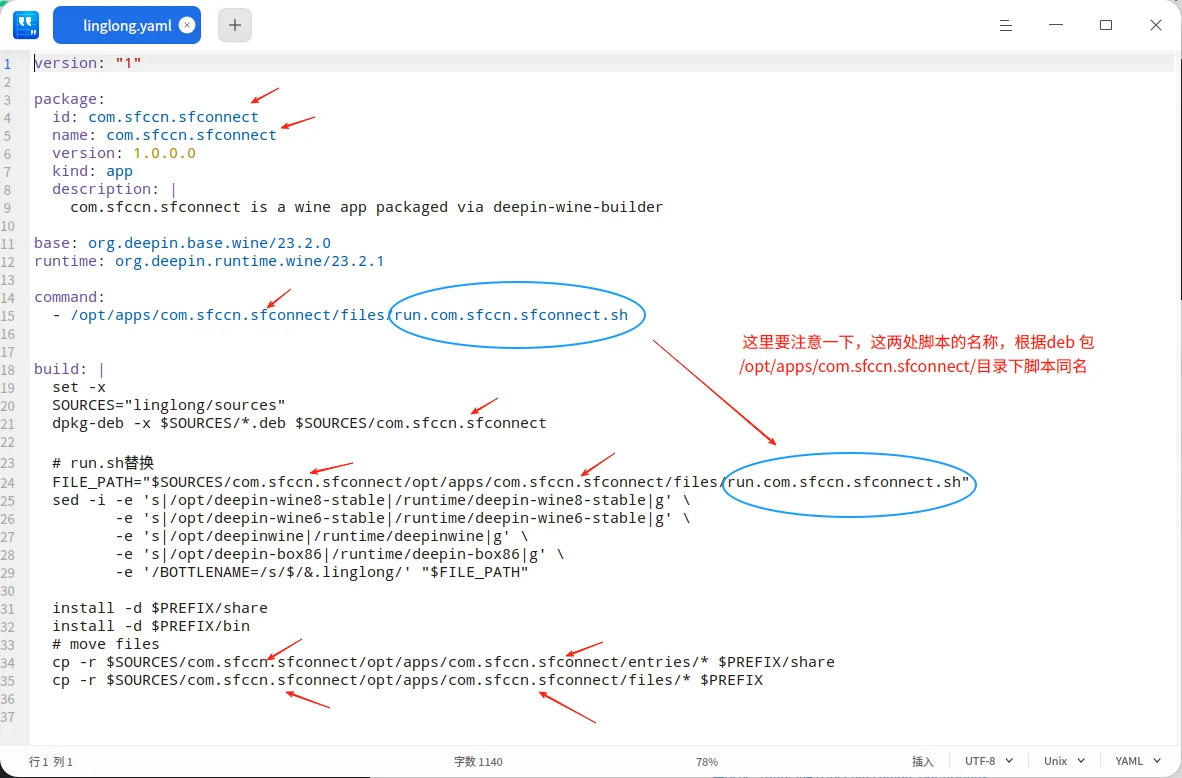
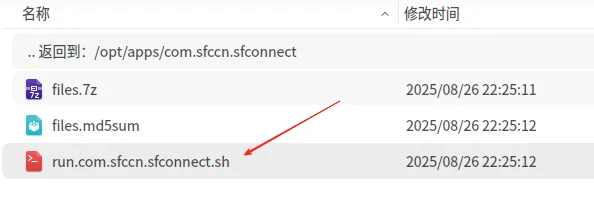
With the template and deb package, the next step is very simple.
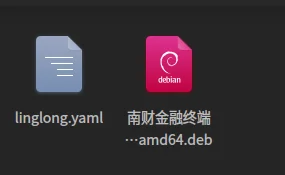
Right-click in the current directory to open terminal input
Create the linglong folder and sources. You can create it manually or with commands.
mkdir -p linglong/sources
mv *.deb ./linglong/sources
Here I use wildcard characters to move the deb installation package in the current directory to the linglong/sources directory.
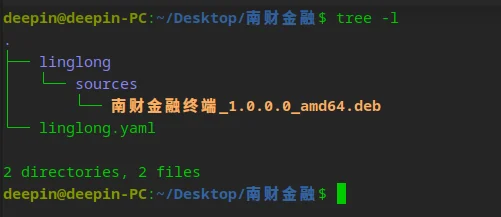
The next step is very simple. It only takes two steps to complete the task.
Enter commands in the current terminal
ll-builder build
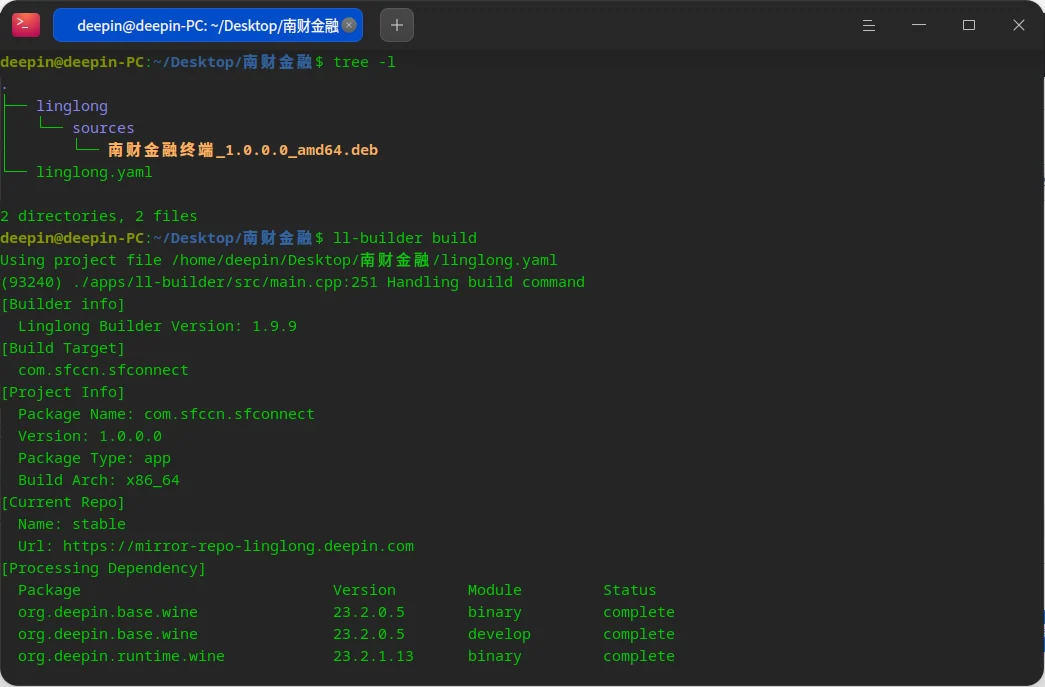
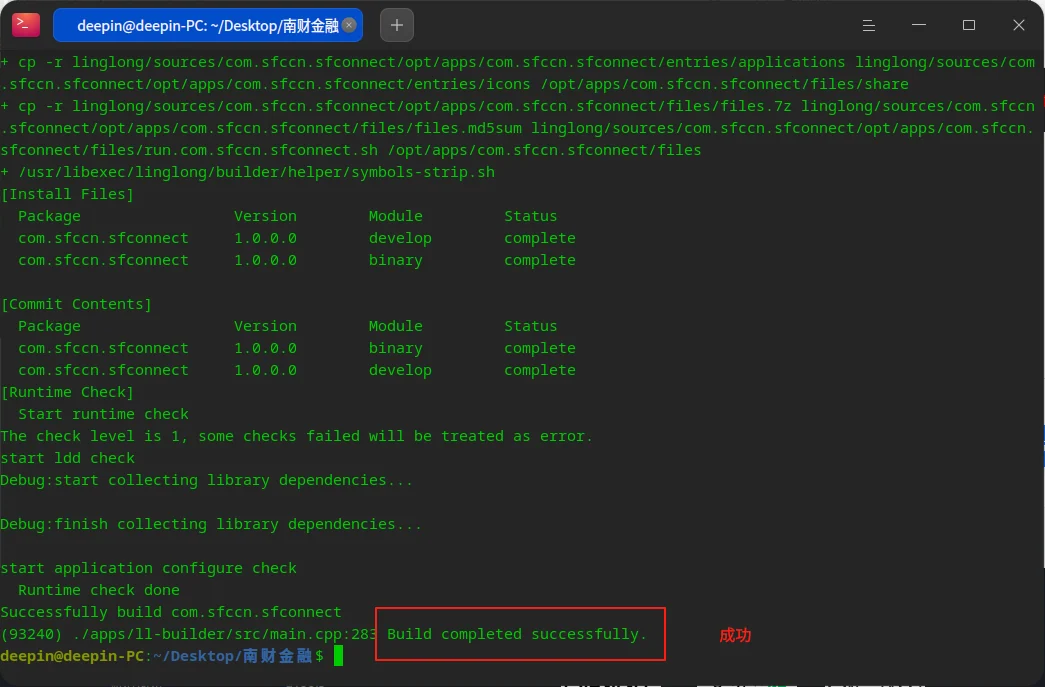
See Build completed successfully! Then the construction has been completed. Next, execute the export and build it into a Linyaps format package.
Execute ll-builder export –layer
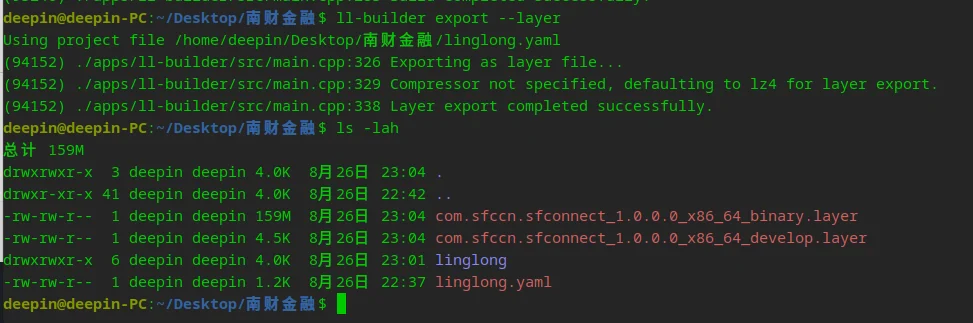
The installation part is skipped here. . . . Isn’t it very simple, just 2 things to pay attention to,
1. The compatible engine currently only supports deepin-wine8-stable
2. The default startup script in the template is run.sh. This depends on the deb package /opt/apps/$app_id/run.app_id.sh
English edition: Linglong · 18 October 2026. Original publication: 2025-09-03.