On this page
Install Linyaps environment on openEuler 24.03 LTSSystem RequirementsSetting up the desktop environmentInstall and configure the Linyaps toolsUsing Linyaps in DDEInstall Linyaps environment on openEuler 24.03 LTS
System Requirements
Before installing the Linyaps environment, your system environment should meet the following requirements:
系统版本: openEuler 24.03 LTS
平台: x86_64
其他: 需要提供图形化界面的桌面环境
Setting up the desktop environment
The Linyaps environment mainly serves most applications with graphical interfaces. Before experiencing it, you'd better have a tool like DDE The same desktop environment that can be used. In order to save time, we have already
DDE, UKUI, and XFCE desktop environments are installed on openEuler 24.03 . 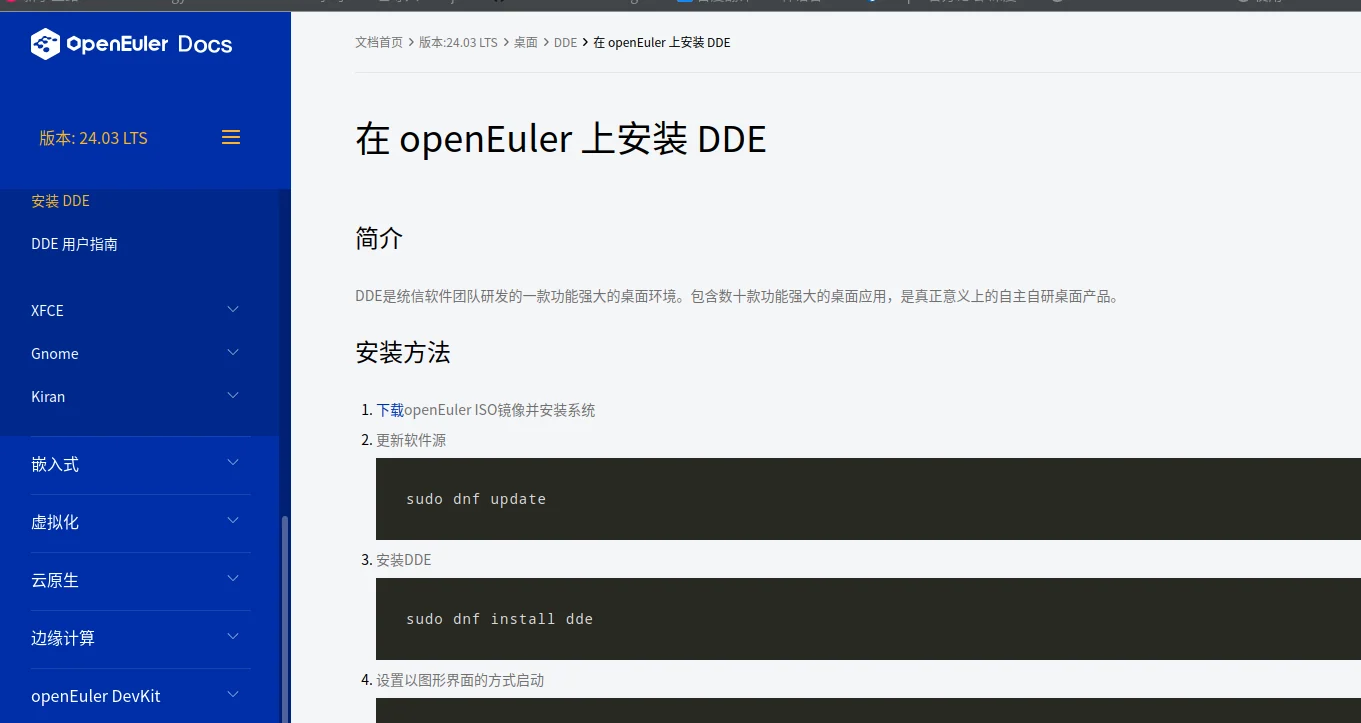
Note: You need to add a non-root account to use Linyaps.
Install and configure the Linyaps tools
After installing DDE, you can now install the Linyaps main program. For details, please refer to Install Linyaps
Note: Linyaps does not currently work with root accounts
* The current latest Linyaps version on openEuler 24.03 LTS still belongs to Test version and some issues remain to be resolved. You should restart the system or Linyaps related services before you start to experience it.
Using Linyaps in DDE
Install and run
After completing the above steps, you are now ready to experience Linyaps!
There are three ways to install Linyaps application:
- “ll-cli” Linyaps package manager tool

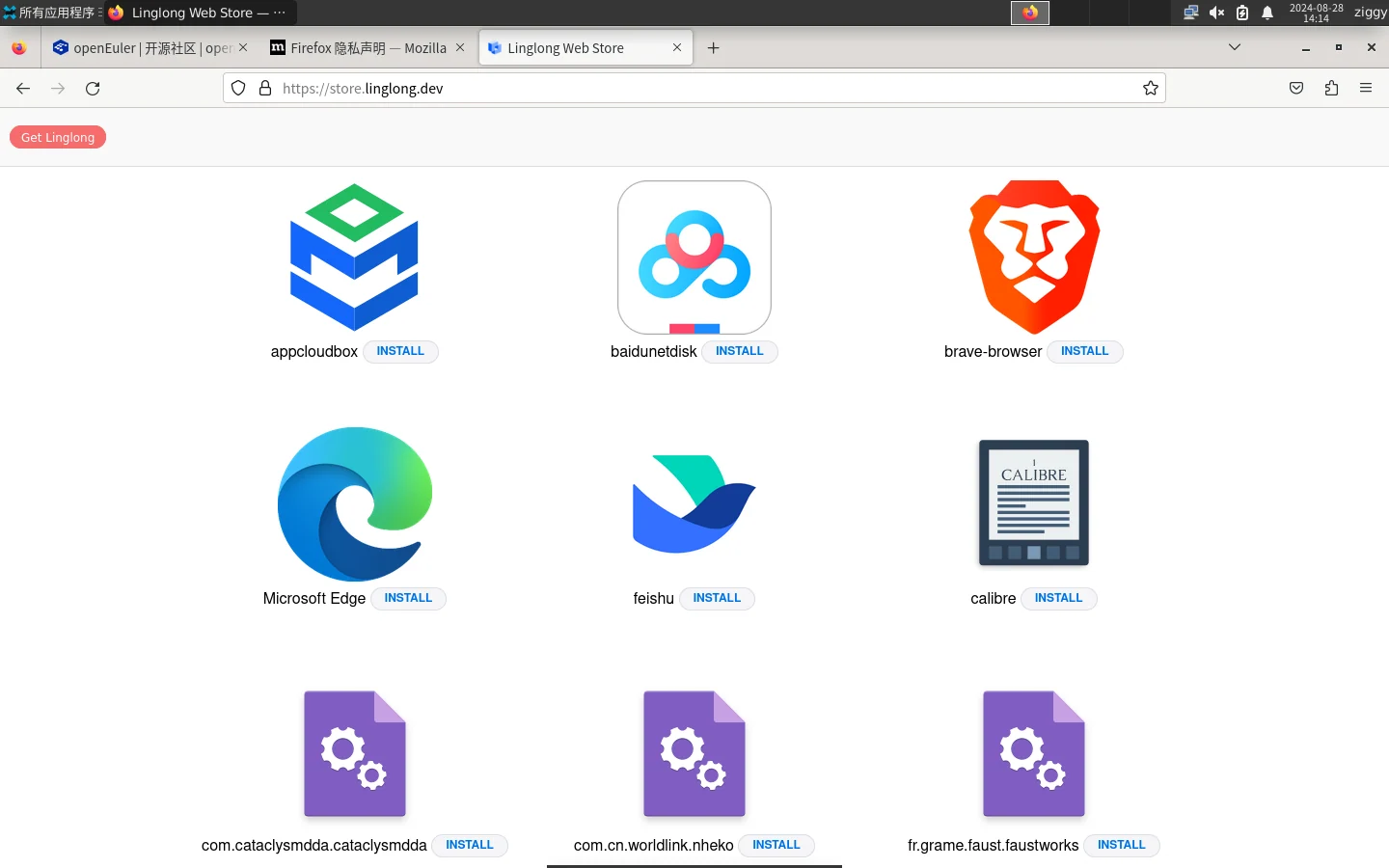
- Linyaps community web app store
- “.layer” independent online installation file

“ll-cli” Linyaps Package Manager Tool (DDE)
Let’s now take a look at the Linyaps package manager tool through **”ll-cli” on the DDE platform What can be achieved. Now let's say I know there is a Linyaps app "Siyuan Notes" has been put on the Linyaps repository and is available for download.
Even though I knew this news in advance, I still needed to get the Linyaps application in order to be able to install it using the "ll-cli" Linyaps package manager tool. Complete id**.
But based on the current information, I only know that the Chinese name of this app is "Siyuan Notes" but I don't know Specific ID or English name , here we can use Pinyin "siyuan" replaces the application name for fuzzy search .
[ziggy@localhost /]$ ll-cli search siyuan
id                               name                             version         arch        channel         module      description
com.siyuan.deepin.linyaps        SiYuan                           3.0.16.107      x86_64      main            binary      Fuse blocks, outlines, and bidirectional links to bui...
From the returned results, we can see that the complete package name ID of the Linyaps application "Siyuan Notes" appears in the repository as **"com.siyuan.deepin.linyaps"**. After obtaining the ID, we can directly start the installation operation.
[ziggy@localhost root]$ ll-cli install com.siyuan.deepin.linyaps
After the installation process is completed, you can execute the following command to confirm whether the application has been installed.
[ziggy@localhost root]$ ll-cli list |grep com.siyuan.deepin.linyaps
If output information like the image below is returned, it means you can now enjoy the Linyaps application!
[ziggy@localhost root]$ ll-cli list |grep com.siyuan.deepin.linyaps
com.siyuan.deepin.linyaps       SiYuan                          3.0.16.107      x86_64      main            binary      Fuse blo
Let's start this application through the launcher and see. The experience is almost perfect. There is no problem opening files and exporting files. 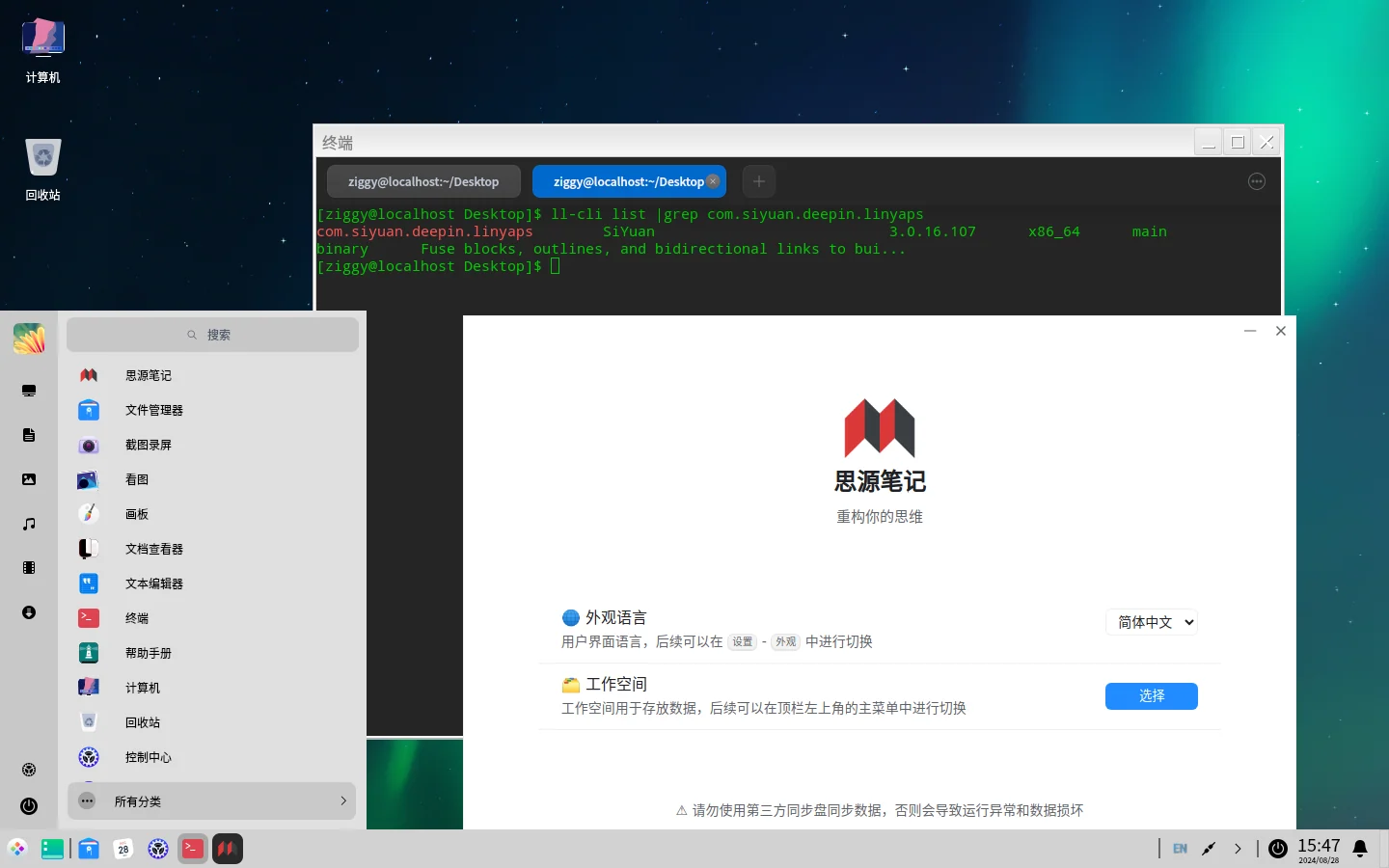
Linyaps Community Web App Store (XFCE)
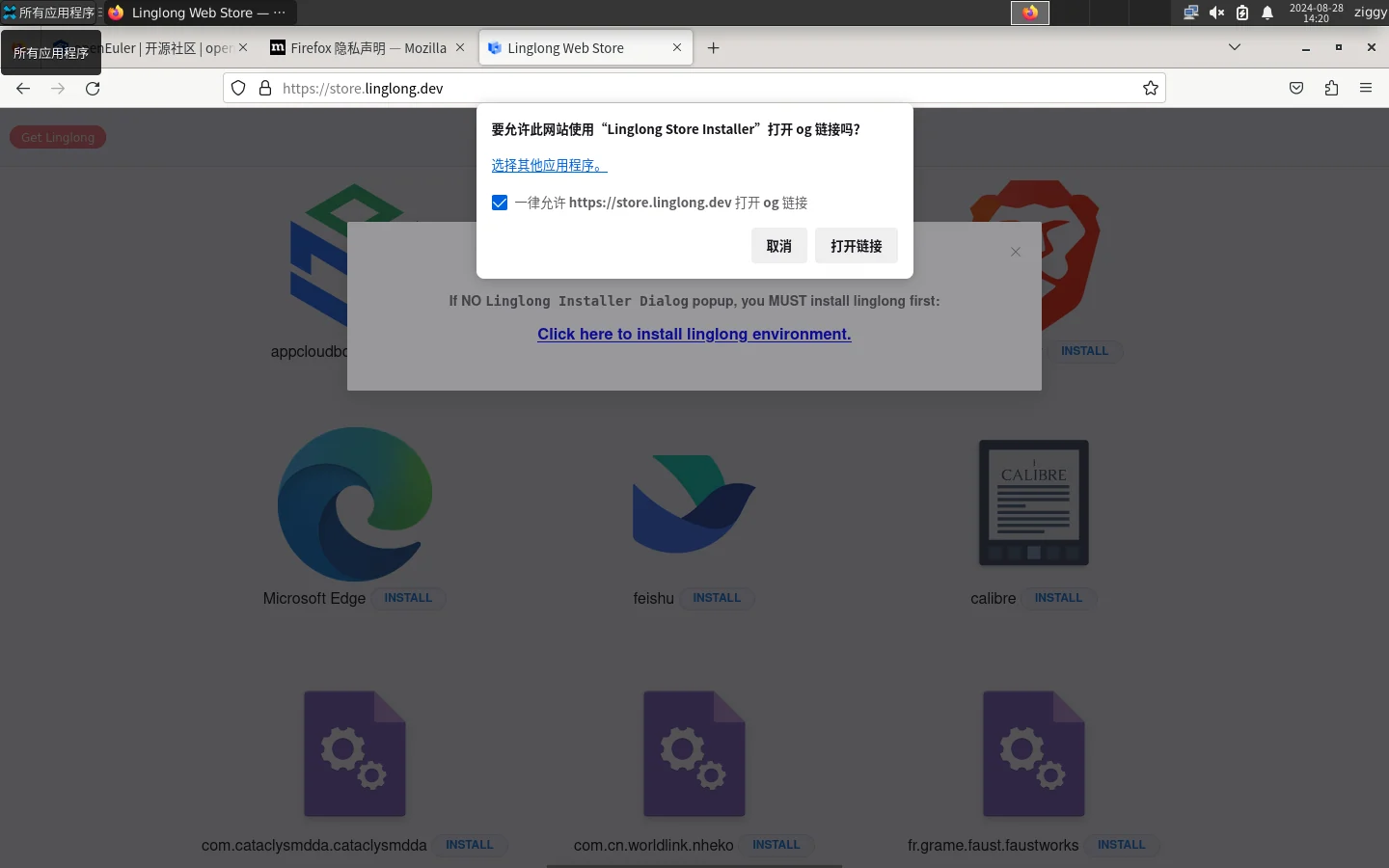
In addition, let us also take a look XFCE desktop environment passed on Linyaps community web app store What is the experience of installing Linyaps application? Let's visit this webpage first. For example, I am going to install **"Baidu Cloud Network Disk" , click “INSTALL” You can start the installation process with one click. When starting the installation process, we can learn from the pop-up window that the current application ID is “com.baidu.baidunetdisk” , so after installation we can pass "ll-cli" Linyaps package manager tool** to check whether the application is installed correctly.
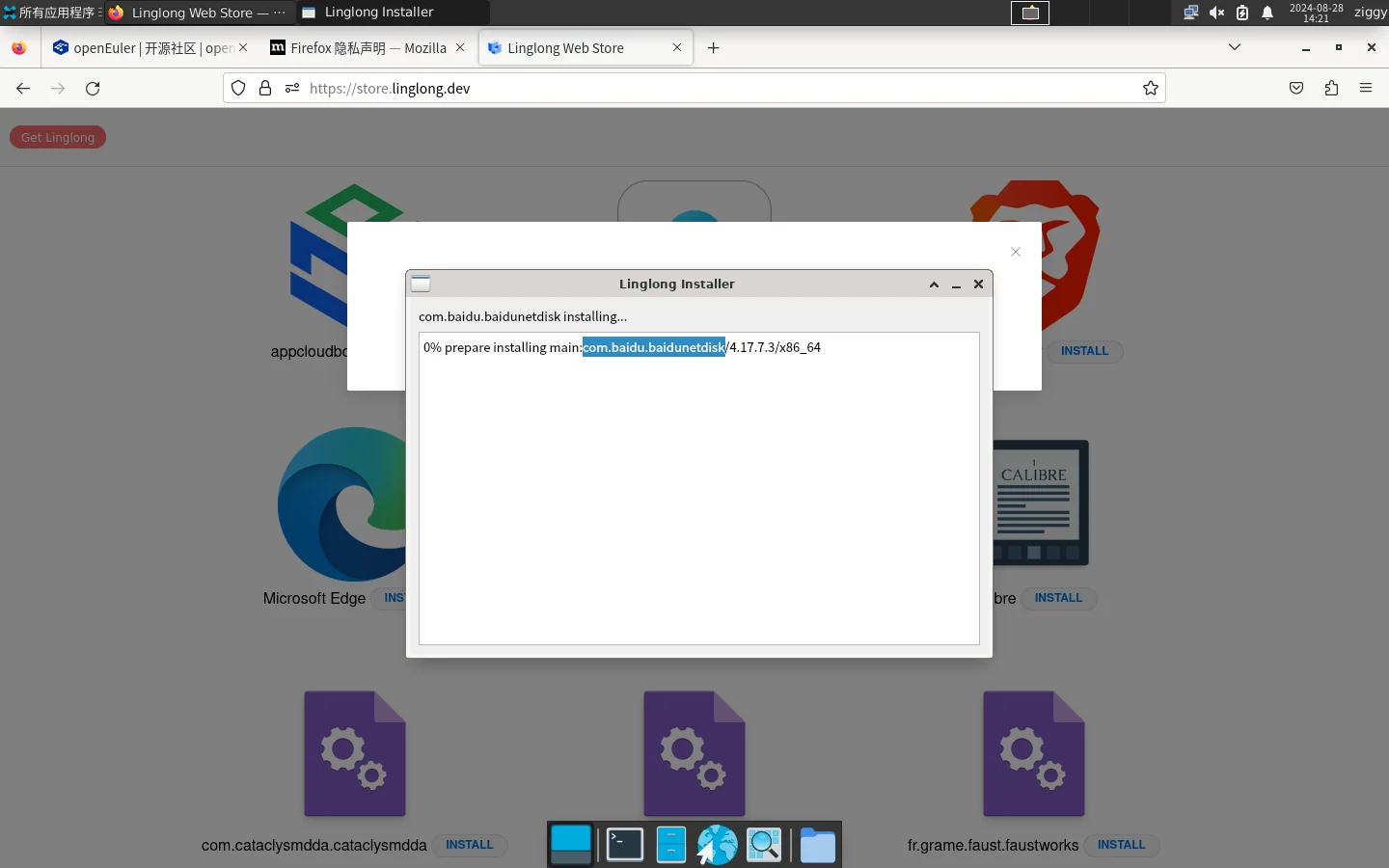
[ziggy@localhost root]$ ll-cli list |grep com.baidu.baidunetdisk
If output information like the image below is returned, it means you can now enjoy the Linyaps application!
[ziggy@localhost root]$ ll-cli list |grep com.baidu.baidunetdisk
com.baidu.baidunetdisk           com.baidu.baidunetdisk           4.17.7.3        x86_64      main            runtime     百度网盘
“.layer” independent online installation file (UKUI)
Linyaps supports independence via ".layer" Online installation files to install the application. If someone shares a file named "xxx.layer" with you, you can use this file to install the corresponding Linyaps application.
It is worth noting that the term "independent installation file" is used here instead of "offline installation file" because installing the Linyaps application through the ".layer" file requires an Internet connection, so you need to Keep network connections open 。
Notice, ".uab" independent offline run file is only available in linglong-bin >= 1.5.7 version is provided later and therefore contains linglong-bin = 1.5.1 of openEuler 24.03 LTS This feature is not supported yet
We now switch to the UKUI desktop environment. Now assume that someone shared a file named **"com.siyuan.deepin.linyaps_3.0.16.107_x86_64_binary.layer" with you. file, then you can install the corresponding Linyaps application through this file.
Please refer to the above for the command parameters used for specific installation. "Installing Applications Using Linyaps Command Line Package Management Tool" , assuming you are going to install the "com.siyuan.deepin.linyaps_3.0.16.107_x86_64_binary.layer" file that someone shared with you, then you should first Enter the directory** where the installation file is stored, and then open a terminal in this directory to ensure that the directory contains this file when executing subsequent commands.
For installation parameters, please refer to:
[ziggy@localhost linglong]$ ll-cli install ./com.siyuan.deepin.linyaps_3.0.16.107_x86_64_binary.layer
After the installation is complete, you can refer to the above "Installing applications using the Linyaps command line package management tool" to confirm whether the installation is complete. At this time, the application ID should be "com.siyuan.deepin.linyaps"
Of course, you can also install layer files in other directories, but you need to specify the file during installation. Full path :
[ziggy@localhost linglong]$ ll-cli install /home/ziggy/linglong/com.siyuan.deepin.linyaps_3.0.16.107_x86_64_binary.layer
It should be noted that there are still some experience problems in the UKUI desktop environment. Not yet resolved :
- After Linyaps application installation Unable to generate desktop application startup file in launcher or desktop , you need to manually enter the Linyaps program installation directory and send the desktop application startup file to the location you need.
- The desktop application startup file generated by the Linyaps application cannot correctly read the icon path. Show default icon , you need to manually specify the Icon path in the desktop application startup file as the path to the actual icon file of the application
Directory paths for reference:
## desktop应用启动文件路径
/var/lib/linglong/layers/main/$id/$version/x86_64/binary/entries/share/applications

## 应用Icon路径
/var/lib/linglong/layers/main/$id/$version/x86_64/binary/entries/share/icons/hicolor
Two points to note:
- Generally, icon files of different sizes are stored in the hicolor directory. It is recommended to select the appropriate size in the Icon field of the desktop application startup file. Fill in the path of the specific icon file
- ** here id *** refers to ***Linyaps application id∗∗,∗∗version refers to Linyaps application Installed version number**, you need to fill in the specific actual value
Below are the renderings & examples of the completed transformation:
[ziggy@localhost applications]$ cat /home/ziggy/桌面/com.siyuan.deepin.linyaps.desktop
[Desktop Entry]
X-linglong=com.siyuan.deepin.linyaps
Name=SiYuan
Name[zh_CN]=思源笔记
Type=Application
Exec=/usr/bin/ll-cli run com.siyuan.deepin.linyaps -- /opt/apps/com.siyuan.deepin.linyaps/files/bin/start.sh %U
Icon=/var/lib/linglong/layers/main/com.siyuan.deepin.linyaps/
     3.0.16.107/x86_64/binary/files/share/icons/hicolor/512x512/apps/siyuan.png
Comment=Fuse blocks, outlines, and bidirectional links to build your eternal digital garden.
Comment[zh_CN]=融合块、大纲和双向链接,构建你永恒的数字花园。
Terminal=false
StartupNotify=true
Categories=Office;
Keywords=markdown;editor;note;encrypt;
Keywords[zh_CN]=markdown;editor;note;encrypt;编辑器;笔记;加密;

English edition: Linglong · 18 October 2026. Original publication: 2024-09-02.