Java application Linyaps transformation
After completing the previous Appimage application conversion, we are about to start showing the effect of Java application Linyaps conversion. Let’s choose one here Java based 's application "Geometry Sketchpad 5", in order to ensure a high degree of standardization and reserve development space for possible future automation, the projects I will demonstrate later have normative features, including but not limited to: directory standardization, construction process standardization, etc.
It should be noted that currently Linyaps’ built-in running environment Foundation or Runtime does not contain jre related libraries. Therefore, if we need to run Java based applications in Linyaps containers, we need to Built-in jre running environment in the program directory . In addition, for general graphical applications, a good experience should also include desktop files and icon files to ensure that ordinary users can start the application through the launcher.
Material Requirements
Therefore, the following files will be used in this case:
- Java based applications that need to be converted Binaries Corresponding archive compressed package
- OpenJDK Binaries Corresponding archive compressed package
- Java based applications that need to be converted Icon file
- Java based applications that need to be converted desktop file
Preparation
Since there are restrictions on the decompression function of tar archive compressed packages in the Linyaps build tool, I recommend that you decompress the compressed package into the project in advance and prepare other materials before building the project.
In order to save time, I have prepared the above files and decompressed the compressed package to show you the structure of several important directories.
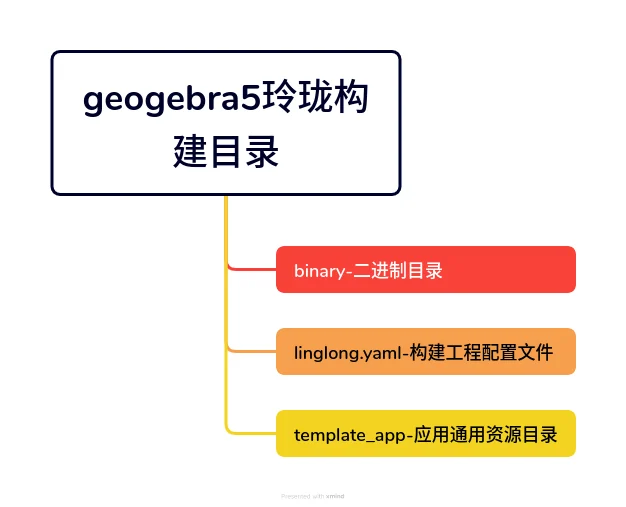
Build directory structure:
[ziggy@localhost geogebra5]$ tree -L 1
.
├── binary
├── extraLibs.uab.yaml
├── geogebra5
├── linglong.yaml
├── template_app
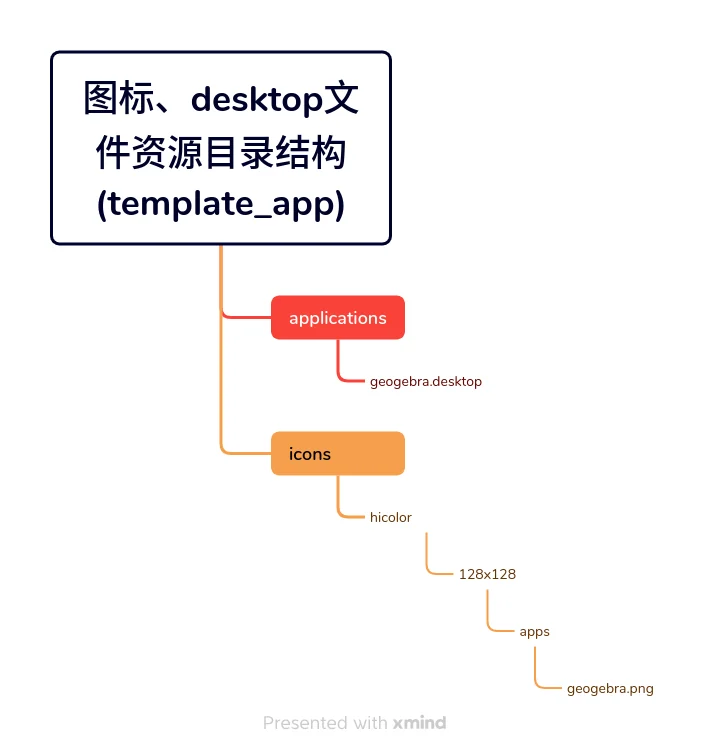
Icon, desktop file resource directory structure (template_app):
template_app/
├── applications
│   └── geogebra.desktop
└── icons
    └── hicolor
        ├── 128x128
        │   ├── apps
                └── geogebra.png
During the whole process, we need to focus on two files that need to be changed:
desktop file.
The Exec field must match the path, application id, and execution command after the Linyaps project is built. The execution command is the same as mentioned below. yaml configuration file The "command" value in remains consistent.
**"command"** value in the case yaml configuration file:
command:
  - /opt/apps/org.geogebra.geogebra5/files/bin/start.sh
The Icon field takes into account the current compatibility differences on different distributions, so it is recommended to fill it in directly here. Absolute path Otherwise, the icon may not be displayed
Directory paths for reference:
## desktop应用启动文件Exec
Exec=/opt/apps/$id/$version/files/bin/start.sh

## 应用Icon目录
Icon=/var/lib/linglong/layers/main/$id/$version/x86_64/binary/entries/share/icons/hicolor
Two points to note:
- Generally, icon files of different sizes are stored in the hicolor directory. It is recommended to fill in the path of the specific icon file in the Icon field of the desktop application startup file after selecting the appropriate size.
- ** here id *** refers to Linyaps application id , ***version** refers to the installed version number of the Linyaps application, and the specific actual value needs to be filled in
Results display:
[Desktop Entry]
Name=GeoGebra5
Name[zh_CN]=几何画板5
GenericName=Dynamic mathematics software
Comment=Create interactive mathematical constructions and applets.
Comment[zh_CN]=免费的课堂活动数字工具, 用于绘图计算, 几何作图, 白板协作等等
Exec=/opt/apps/org.geogebra.geogebra5/files/bin/start.sh %U
Icon=/var/lib/linglong/layers/main/org.geogebra.geogebra5/0.0.0.1/x86_64/binary/
     files/share/icons/hicolor/256x256/apps/geogebra.png
Type=Application
StartupWMClass=geogebra-GeoGebra
Categories=Education;Math;
MimeType=application/vnd.geogebra.file;application/vnd.geogebra.tool;

Terminal=false
StartupNotify=true
yaml configuration file.
At present, what I am sharing with you is the file after modular transformation. You mainly modify the following variable contents and the specific contents written to start.sh.
Due to standardized design, the jre runtime directory is uniformly set to $PREFIX/bin/jdk, so we mainly modify the directory where the program installation file is located, which is the penultimate line of the template. After confirming that all the content has been modified and preparations are complete, we can start building the export project. 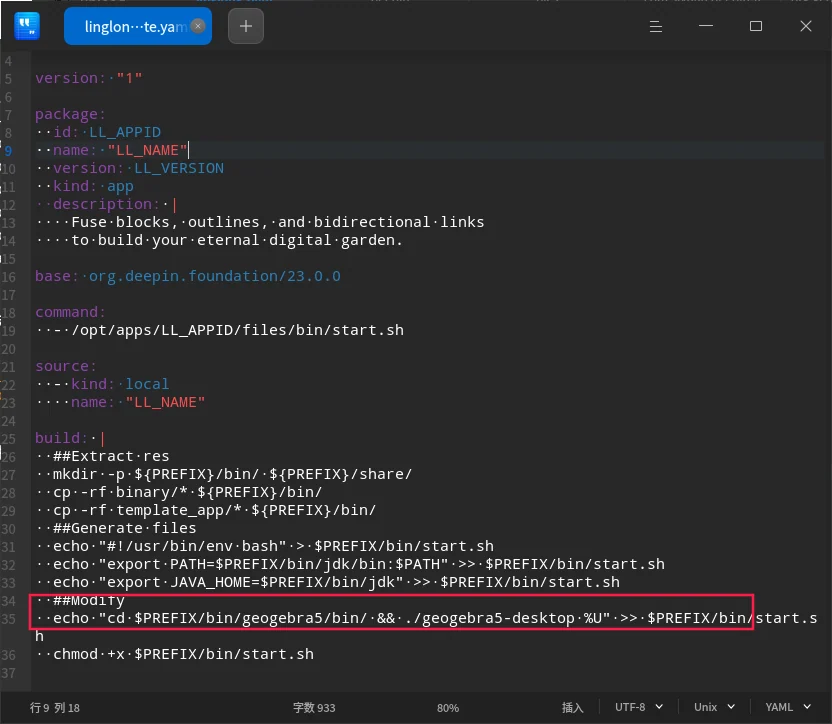
echo "cd $PREFIX/bin/geogebra5/bin/ && ./geogebra5-desktop" >> $PREFIX/bin/start.sh
| Variables need to be replaced | Explanation |
|---|---|
| LL_APPID | Linyaps application id |
| LL_NAME | Linyaps application name |
| LL_VERSION | Linyaps application version |
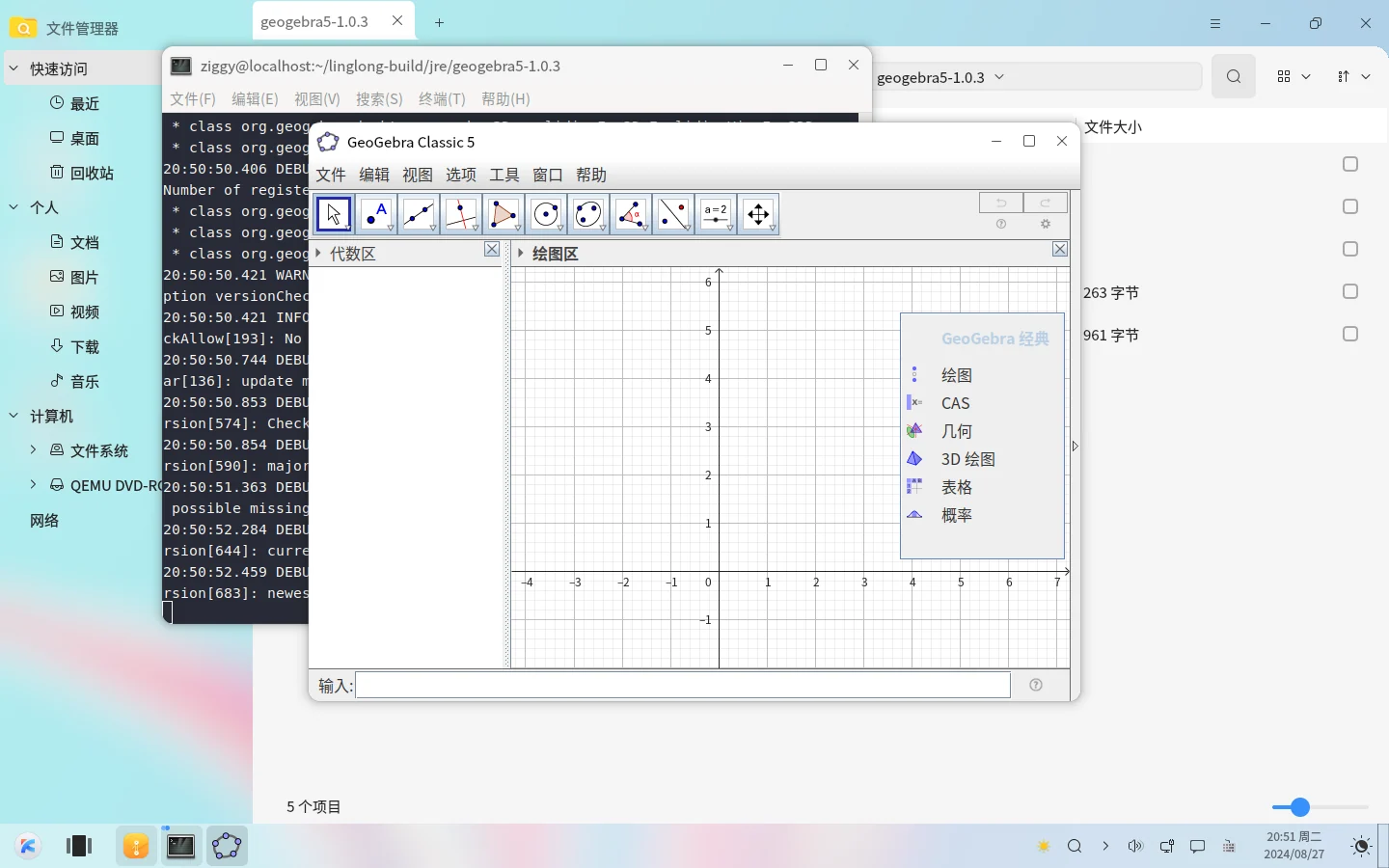
After the build is completed, we perform debugging in the project directory to see if it runs normally
[ziggy@localhost geogebra5]$ ll-builder run
English edition: Linglong · 18 October 2026. Original publication: 2024-09-02.